Getting started
RAW Studio is a native app for Mac (macOS 26). It brings the library, RAW developing, retouching, artificial intelligence and photo planning together in a single window.
Get the app
- On the home page, press made 4 Mac to download the .dmg file.
- Open it and copy RAW Studio to your Applications folder.
- Open it. If macOS asks you to confirm opening an app downloaded from the internet, confirm it in .
The source code is open: the view on GitHub button on the home page takes you to the repository.
Create or open a library
The library is the folder where RAW Studio keeps its catalog. By default it is Pictures ▸ RAW Studio Library. You can change it, open another one or create a new one in with the Open library… and New library… buttons.
Import photos
The File menu opens the import window. Choose the photos or the folder and confirm. Your originals are never modified: adjustments are stored separately, in the catalog and in XMP files.
- Smart previews. The import window has a Generate smart previews checkbox. They are lightweight copies that let you keep browsing and developing your photos even when the drive or NAS holding the originals is not connected (see Offline and backups).
- Lightroom catalog. If you are coming from Lightroom, you can optionally import your .lrcat catalog. The original file is left untouched.
- Lightroom presets. brings in all your presets at once from the Camera Raw folder. The import has a search box and the app remembers the last preset you used.
Formats: camera RAW (for example Canon CR2), JPEG, TIFF, PSD, HEIC and iPhone files (including ProRAW).
The window
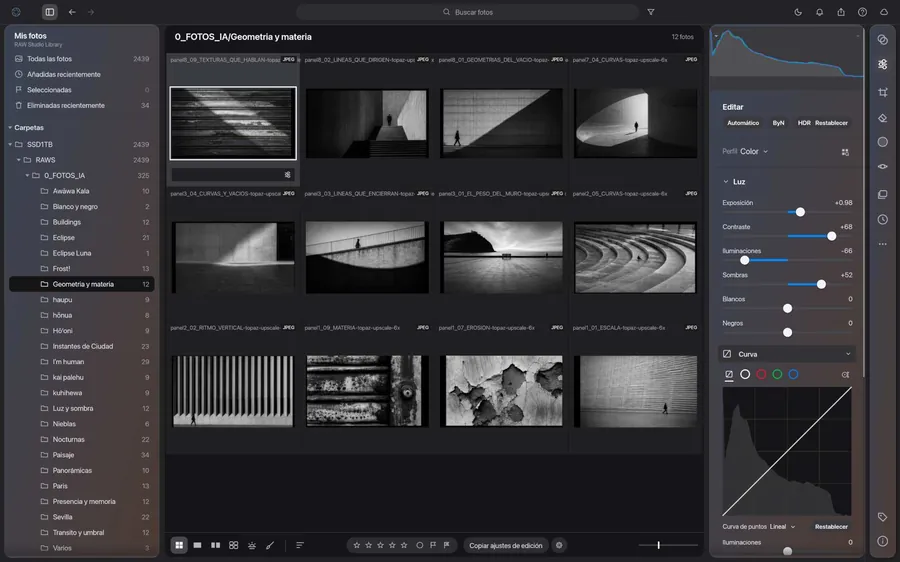
- Top bar. The left panel button, back and forward, the Search photos box with its filter and, on the right, several shortcuts, including the cloud for library backup.
- Left panel. My photos (All photos, Recently added, Selected, Recently deleted) and the Folders tree, with the number of photos in each.
- Center. The thumbnail grid or the open photo.
- Right panel. A column of tool icons: developing (Edit), crop, Remove, Masks and more. Choosing one opens its panel.
- Bottom bar. On the left, the view buttons: grid, single photo, several photos, the planner and the editor. In the middle, ratings and flags and Copy edit settings. On the right, zoom (Click 2:1, Fit) or thumbnail size.
Panels are floating cards and can be hidden. The app always opens in the grid and full screen.
Library
Find photos
- Type in Search photos and use the filter icon to narrow the results.
- Browse by Folders or by the collections under My photos.
- Each thumbnail shows the file name and its format (RAW, JPEG, DNG…).
Rate and select
The bottom bar has five stars and selection flags. Use them to sort out your choice before developing.
Delete
Deleted photos go to Recently deleted. In you can ask for a confirmation before moving them and turn on auto-advance to the next photo after rating or flagging.
Develop
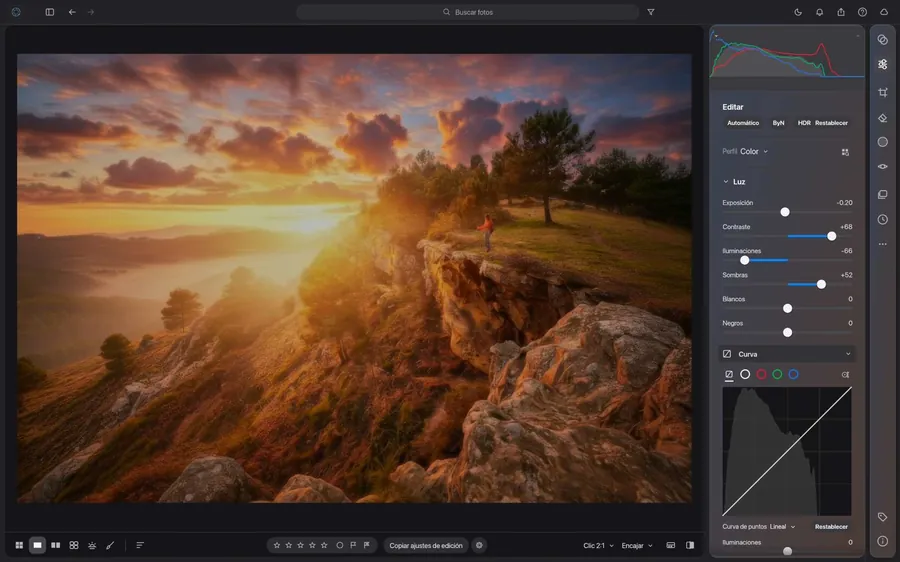
Developing is non-destructive: you can change or undo any adjustment at any time. Select a photo and choose Edit in the right panel.
The Edit panel
- Auto, B&W and HDR apply a starting point; Reset goes back to zero.
- Profile chooses the photo's color profile.
- Light: Exposure, Contrast, Highlights, Shadows, Whites and Blacks, with sliders.
- Curve: a point curve (linear by default), with separate red, green and blue channels. Reset straightens it.
- Further down there are more sections. Open and close them with their arrow.
By default it works in solo mode: only one section is open at a time, as in Lightroom. Right-click a section title to turn it off.
Before and after
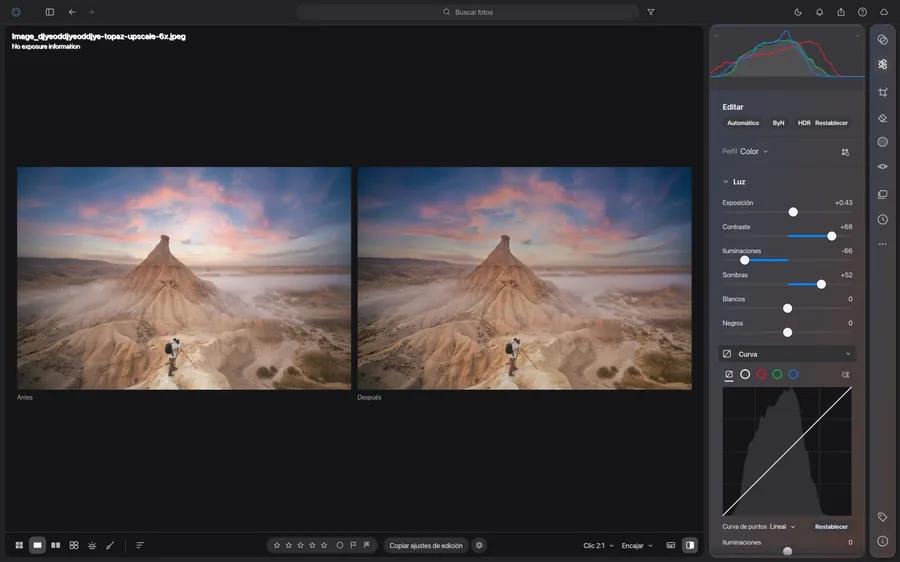
The comparison view shows the photo without adjustments and with them, side by side, labeled Before and After.
Copy settings
The Copy edit settings button in the bottom bar copies the open photo's adjustments so you can paste them onto others.
Remove spots
The Remove panel removes spots and objects. It has a With AI mode (see Artificial intelligence).
Masks
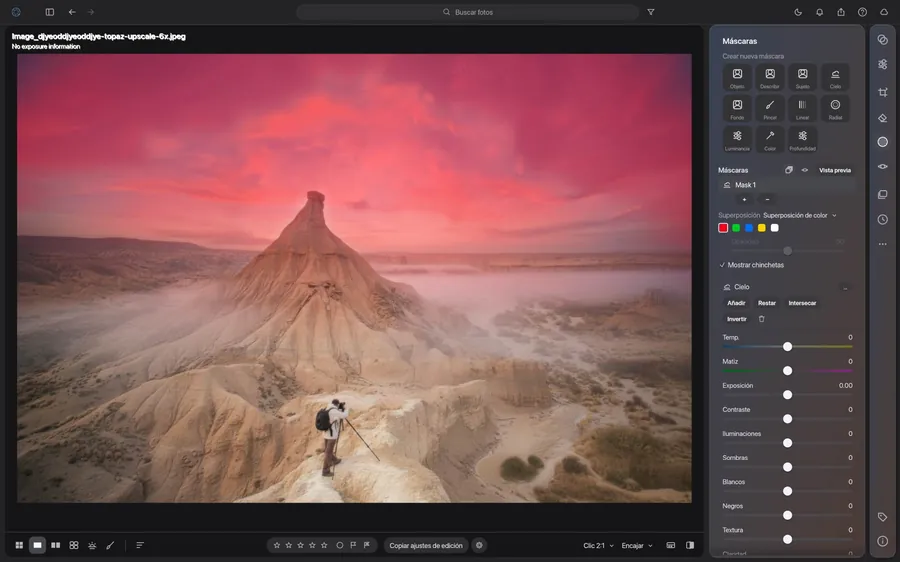
Masks apply adjustments to only part of the image. Open the Masks panel and, under Create new mask, choose the type:
- Object, Describe, Subject, Sky and Background: automatic AI selections.
- Brush, Linear and Radial: the ones you draw yourself.
- Luminance and Color: select by tone or brightness.
- Depth: selects by distance from the camera.
Combine and adjust
- Each mask has a component (for example Sky) with the Add, Subtract, Intersect and Invert buttons, and the trash can to delete it. With + and – you add or subtract areas to the mask.
- Each mask has its own sliders below it: Temp., Tint, Exposure, Contrast, Highlights, Shadows, Whites, Blacks, Texture, Clarity…
- Overlay paints the mask in a color (red, green, blue, yellow or white) with its own Opacity. Preview shows it full screen and Show pins displays each mask's points.
Artificial intelligence
The AI tools run on your Mac, using the GPU. The models are not bundled with the app: they are downloaded the first time you use them. If one is missing, RAW Studio offers it and, when the download finishes, repeats the command.
- AI noise reduction — . Creates a 16-bit TIFF copy stacked with the original. It has its own tab in .
- Enlarge ×2 / ×4 — increases the photo's resolution.
- AI erase — in Remove ▸ With AI. Paint over what you want gone and it is filled in when you release the mouse. If you move or resize the spot, it is filled in again.
- Depth mask — the Depth mask in the masks panel.
- SAM 3 — object selection. It is downloaded from Hugging Face and needs your personal key for that service.
Editor
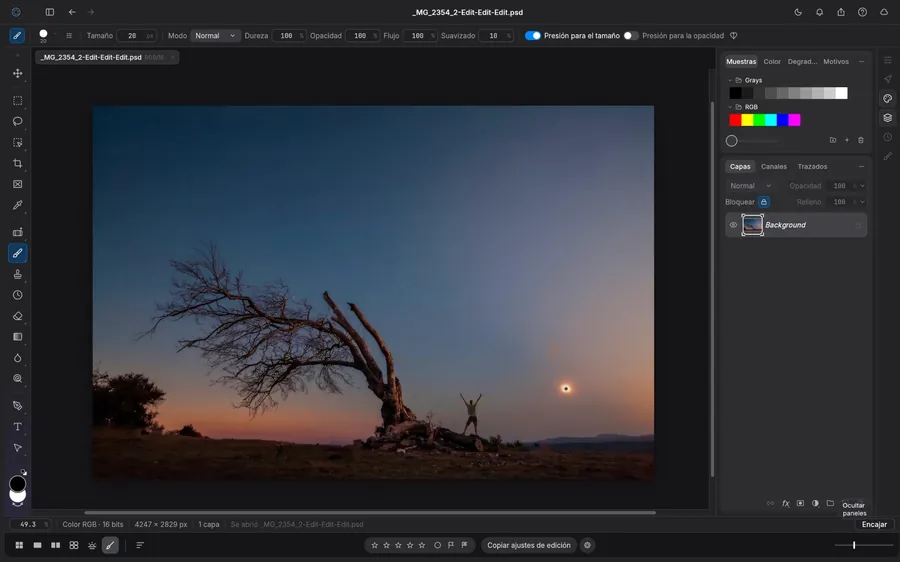
The editor works with layers and lives inside the same window: no other program opens. It has selection, crop, brush, stamp, gradient, text and path tools, and the Swatches, Color, Gradients, Patterns, Layers, Channels and Paths panels. At the bottom you can see the zoom, the color mode and the document size.
Round trip from developing
- Select a photo and choose (⇧⌘E), or right-click the photo.
- RAW Studio creates a copy (16-bit PSD by default) with your adjustments, stacks it next to the original and opens it in the editor.
- Retouch and press ⌘S. It saves over that copy and the library thumbnail updates.
- Hide panels: Tab (or the floating Hide panels button) leaves only the image.
- Leaving with unsaved changes: the app warns you before closing.
- Another editor: ⌥⌘E opens the copy in another application. You can also send it the original RAW with no copy by right-clicking ▸ Edit in ▸ Open original in another editor (RAW, no copy). It is set up in Settings ▸ General ▸ External editing.
Panoramas and night
Panoramas
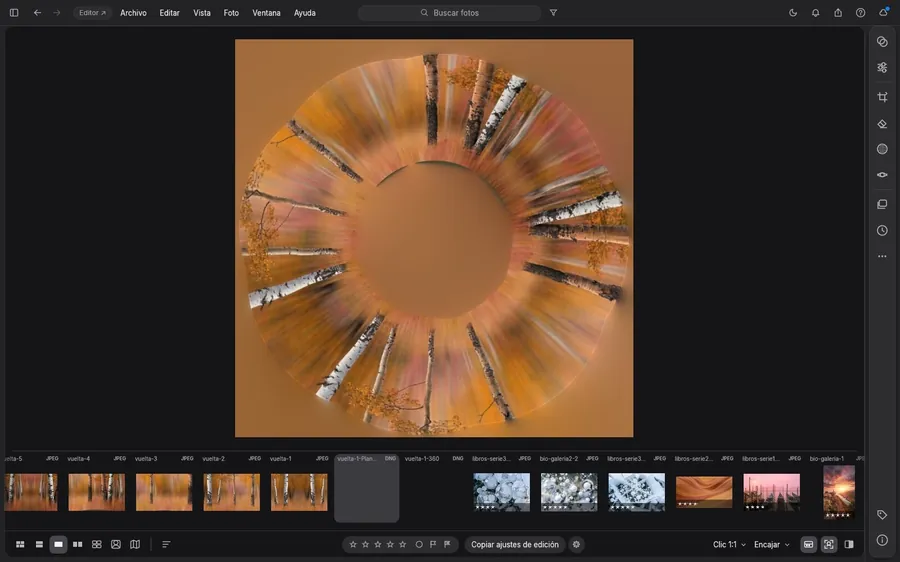
Select the photos and choose (⌃M). A large preview opens.
- Orientation. It is automatic: series with vertical photos come out upright. If the calculation fails (for example, if the sky is not brighter than the ground), choose 0°, 90°, 180° or 270° by hand.
- 360° photo and Little planet are available next to the panorama.
Night stacking
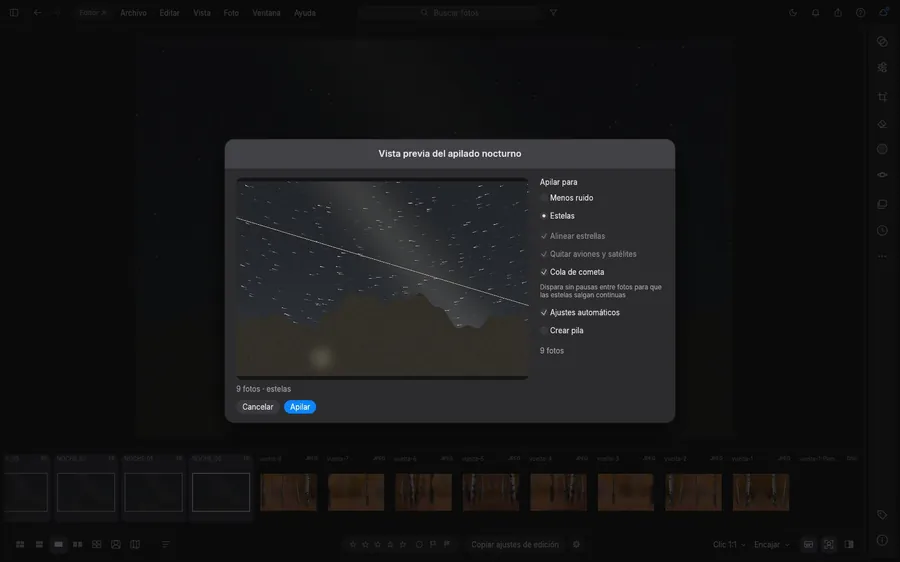
Select the series and choose night stacking (⌃N). The Night stack preview window offers:
- Stack for: Less noise or Star trails.
- Align stars and Remove planes and satellites.
- Comet tail: for continuous trails, shoot with no pauses between frames.
- Automatic adjustments and Create stack.
Press Stack when the preview looks right. You can also create a timelapse as a QuickTime video, from 720p to 4K.
Map and planner
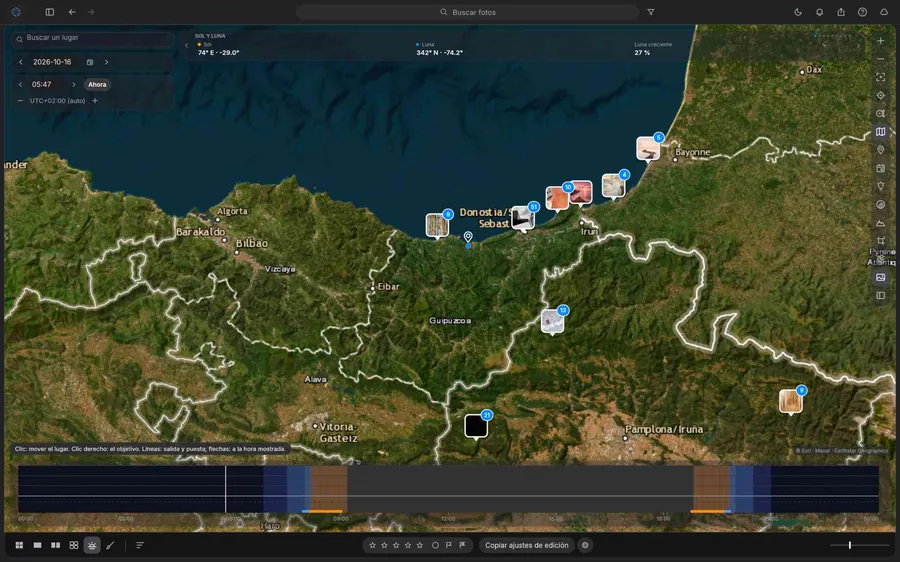
The map and the planner are a single view: the map fills the screen and the controls float over it. It opens with the planner button in the bottom bar. The astronomical calculations are done on your computer.
Moving around the map
- Search a place (top left) centers the map on the place you type.
- Click on the map to move the working place. Right-click opens the menu: new point of interest, plan or target.
- Pins with a thumbnail are your geotagged photos; the number shows how many are in the group. Click to zoom in.
- The column of buttons on the right controls zoom, centering and the layers (photos, points of interest, plans, mountains, shadows and light pollution). The map is satellite by default; a button switches back to the plain map.
Date and time
At the top left you choose the date, the time (with the Now button) and the time zone, which is automatic. The time bar at the bottom paints the day in colors (night, twilights, blue and golden hours); use it to see how the Sun and the Moon move through the day. The thick lines on the map are rising and setting; the arrows are their position at the time shown.
Side panel
The panel shows the place (name, coordinates, time zone) and its actions: Map center, Selected photo, Save as POI and Put photos here. You can paste coordinates in decimal degrees or in degrees, minutes and seconds, and copy them. Five tabs:
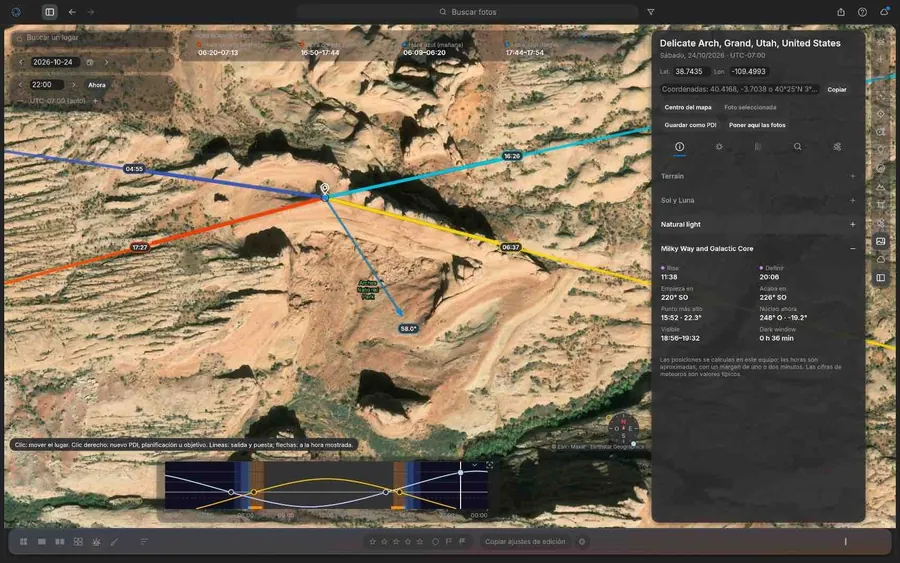
- Information: terrain, Sun and Moon, natural light and the Milky Way and galactic core (rise, set, highest point, dark window).
- Night: the Milky Way core, its visibility window and the year's night calendar, with the Moon's phase each day. Use it to pick the night.
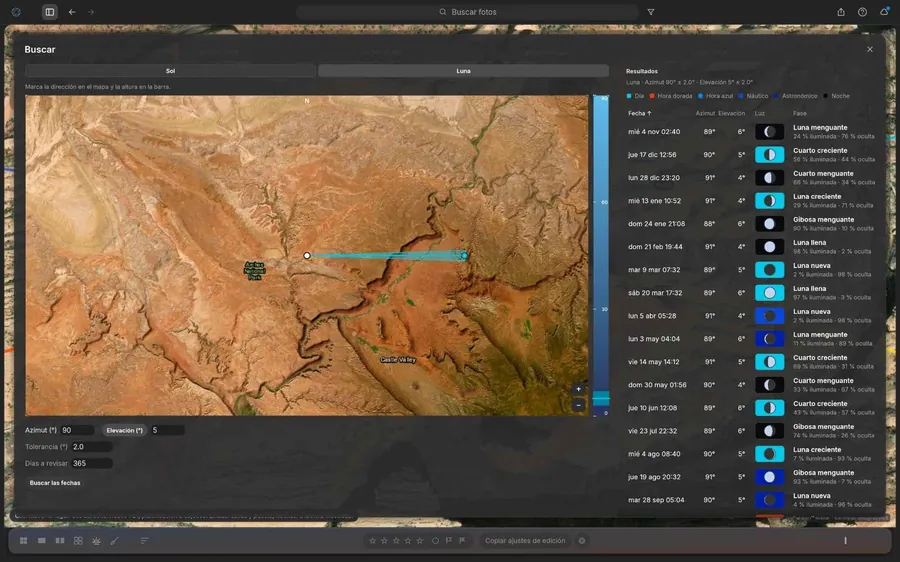
- Search: finds the days of the year when the Sun or the Moon appear in the direction and at the height you mark. Choose Sun or Moon, mark the direction on the map and the height on the bar, adjust Tolerance and Days to check and press Find dates. The table gives date, azimuth, elevation, light color and phase.
- Calculations: photography calculators (below).
- Align (right-click ▸ target): mark a target (a mountain, a building) and you see its distance, direction and the angle of its top, and how the Sun and the Moon line up with it at the time shown.
Calculators
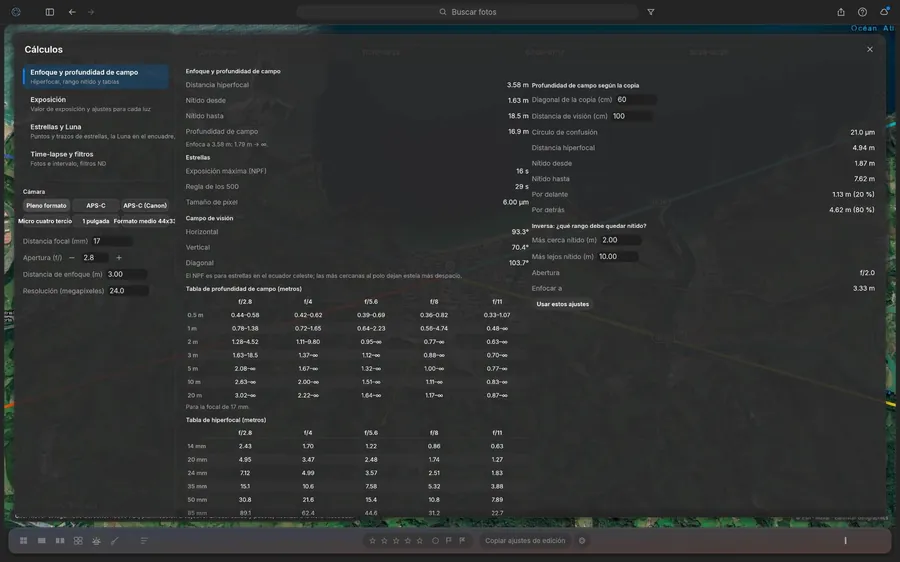
In Calculations you choose the camera type (full frame, APS-C, Canon APS-C, Micro Four Thirds, 1-inch or medium format), the focal length, the aperture, the focus distance and the resolution. There are four blocks:
- Focus and depth of field: hyperfocal distance, sharp range, tables by aperture and distance, and the depth of field according to print size and viewing distance. Also the inverse: which range must be sharp, and with what aperture and focus.
- Exposure: exposure value and equivalent settings for each light.
- Stars and Moon: maximum exposure (NPF), the 500 rule, pixel size, field of view, stars as points or trails and the Moon in the frame.
- Time-lapse and filters: photos and interval, and ND filters.
Points of interest and plans
- Point of interest (POI). A place you want to remember, with a status (Want to go or Visited), best time, notes, a description and photos. It shows as a red pin. Create them with a right-click on the map or with Save as POI. You can export and import them as JSON from the File menu.
- Plan. A place, a day and a time for a specific photo, with a name, notes and a reminder (from 15 minutes to a day before). It shows as a blue pin. Add to Calendar creates the event in macOS Calendar, with the Sun's times, the golden and blue hours, the Moon and the Milky Way in the notes.
Map layers
- Sun and Moon: standard style, trajectory or light direction.
- Milky Way: the arc, the core and its visibility. Twilights and meteor showers (radiant).
- Eclipses: contacts of lunar and solar eclipses from your location, and the solar eclipse's totality path.
- Mountains: the horizon skyline with the path of the Sun, the Moon and the Milky Way core. Shadows over the terrain. Light pollution from the world atlas.
- Field of view and depth of field drawn over the map.
iPhone app
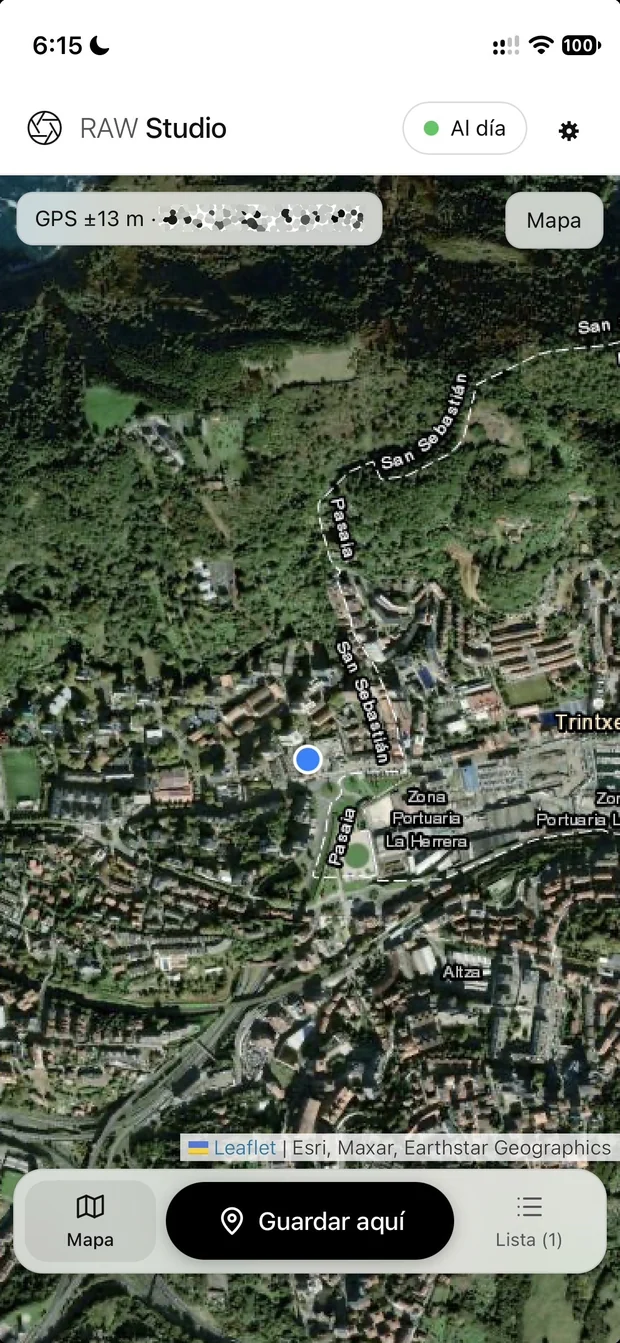
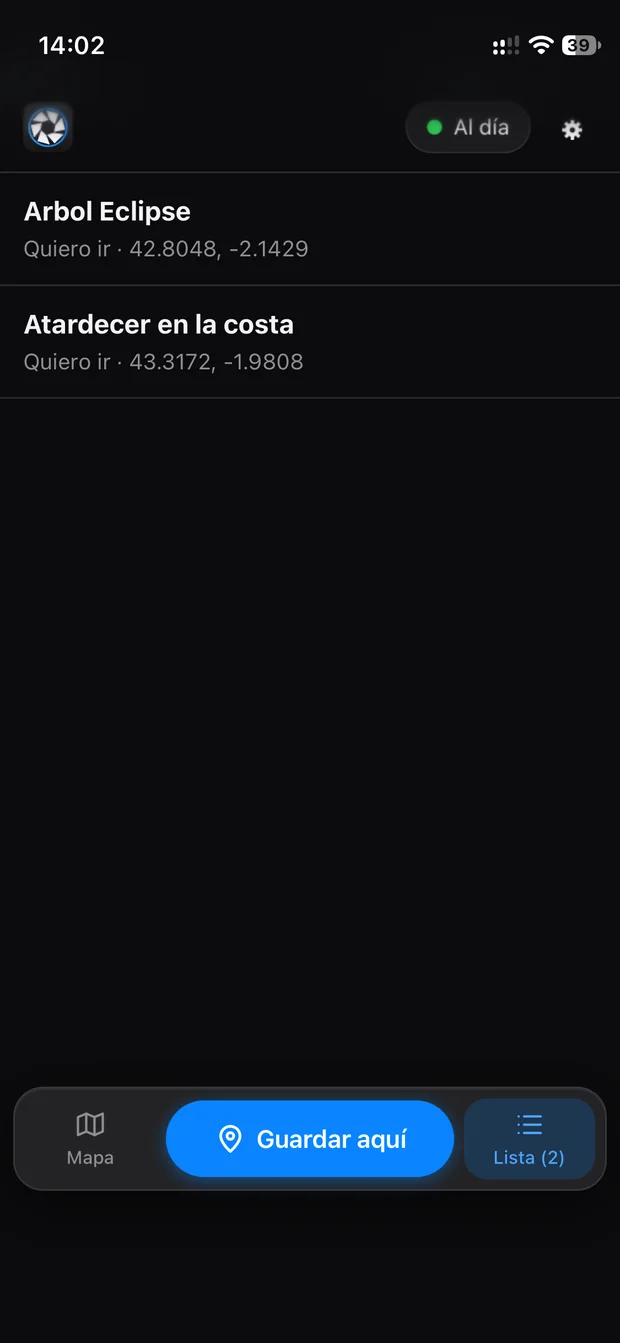
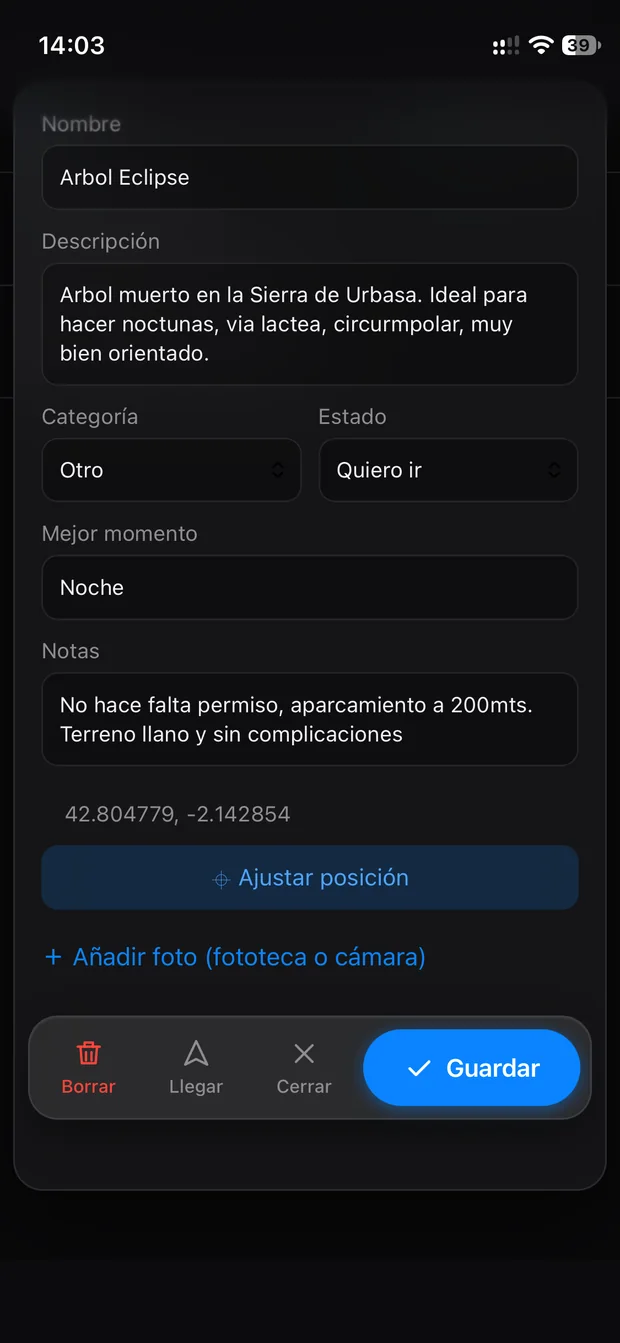
A web app for the iPhone saves a place the moment you discover it, and syncs both ways with the points of interest in RAW Studio on the Mac.
Save a place
- On Map you see your GPS position, with its accuracy, over the satellite map.
- Press Save here to save your position, or mark the point on the satellite map.
- Fill in the card: Name, Description, Category, Status (Want to go or Visited), Best time and Notes. With Adjust position you fine-tune the point, and you can add photos from your photo library or the camera.
- Press Save. Go guides you to the point and Delete removes it.
List shows all your places with their status and coordinates. The indicator at the top (Up to date) tells you whether sync is complete.
Link the phone to the Mac
Sync uses a service of your own (a Cloudflare Worker) whose address and key are set in .
- On the Mac, open . If needed, Generate a new key (it is stored in the macOS keychain) and use it in the service too.
- Press Link a phone. A code appears (for example BZTY-TV5G) with a 10-minute countdown and a QR code. It works once.
- On the iPhone, scan the QR with the camera. Safari opens: press Share ▸ Add to Home Screen and open the app. It links itself.
- If it does not link itself, open the app, go to Settings, type the code in Pairing code and press Link this phone.
On the same Mac screen you see the list of linked phones with their last use, and you can revoke any of them: it stops working instantly.
Sync
- The Mac syncs when it opens, every 10 minutes, with the cloud button on the map and with .
- Additions, edits and deletions travel both ways. Photos added from the phone appear on the Mac's card, under Phone photos.
- If the same point is changed in both places at once, the service's version is kept and the other one stays as a copy marked (conflict): nothing is lost.
Settings
They open from the app menu. The tabs are: General, Import, Performance, Display, Interface and AI noise reduction. General contains:
- Language. The interface is available in English, Simplified Chinese, Traditional Chinese (Taiwan), Japanese, Portuguese (Brazil), Spanish, German, Russian, French and Ukrainian.
- Library. Location, Open library… and New library….
- Network drive. To keep your RAW files on a NAS: Server, Shared folder and RAW folder, and the checkbox to connect the drive when RAW Studio opens. Connect now mounts it by hand. The first time, macOS asks for the server's username and password: tick Remember this password in my keychain and afterwards it connects by itself. RAW Studio never stores the password.
- Tailscale. With Turn on Tailscale if the server does not respond, the drive also connects away from home. The Tailscale server has to share your home network.
- Selection. Auto-advance and confirmation before moving photos to Recently deleted.
- External editing. For Editor (the built-in one) and Other editor you choose the copy's format (PSD or TIFF, 16 or 8 bit) and the color space (Adobe RGB, ProPhoto, P3 or sRGB). For another editor you type the app's name on macOS.
Offline and backups
Working without the NAS
If your originals are on a NAS or an external drive that is not connected, RAW Studio keeps working with smart previews.
- Photos whose original is disconnected but that have a preview can be viewed and developed as usual. They carry a colored dot in the grid.
- Those with no preview show Original offline.
- When the drive comes back, RAW Studio detects it and regains access to the originals. The 1:1 zoom reads the original again.
Library backup
The cloud icon in the top bar backs the library up to the NAS. It only copies what has changed and leaves the catalog for last. If seven days go by without a backup, the app reminds you.
Keyboard shortcuts
| Shortcut | What it does |
|---|---|
| ⇧⌘E | Open the photo in the Editor (PSD copy with your adjustments) |
| ⌥⌘E | Open the copy in another editor |
| ⌘S | Save in the Editor (updates the copy in the library) |
| Tab | Hide or show the Editor's panels |
| ⌃M | Combine photos into a panorama |
| ⌃N | Night stacking (less noise or star trails) |
The remaining shortcuts appear next to each command in the menu bar.
Troubleshooting
An AI tool asks to download a model
That is normal the first time. Confirm the download and wait for it to finish; the command repeats itself. You only need an internet connection for that download.
My photos show «Original offline»
The drive or NAS holding the originals is not connected. Connect it (or use Connect now in Settings ▸ General ▸ Network drive) and wait a few seconds. To work without it, generate smart previews when importing.
The map does not load or does not show terrain
The satellite map, the terrain and light pollution are downloaded from the internet. Check your connection. The Sun, Moon and Milky Way calculations work without it.
The phone does not sync
Check that the app's indicator says Up to date. If it asks you to link again, the phone's key was revoked: generate a new code on the Mac. Remember that each code lasts 10 minutes and works once.
The panorama comes out rotated
Choose the orientation by hand in the panorama dialog: 0°, 90°, 180° or 270°.